

Chrome Proxy Settings in 2026: Windows & macOS

Google has introduced several changes to how Chrome handles proxy settings. Chrome uses the system’s proxy settings to configure and change proxy settings.
To set up proxy rules, such as using various proxies for different websites, you can use proxy extensions like FoxyProxy. Alternatively, you can launch Chrome from the terminal with the command-line arguments to apply the proxy server exclusively to Chrome.
Setting up proxy settings in Google Chrome for macOS
- To open Chrome settings, click the three-dot menu in the top-right corner, then navigate to settings.
- Scroll down and click on “System”.
- Click Open your computer’s proxy settings option.
- This will open the Proxies page in Network options because Chrome lacks in-app proxy server settings. Select the type of proxy server that you wish to set up. Click OK after entering the proxy server information.
Additionally, most proxy companies offer Proxy Browser Extension for Chrome with their proxy services such as Oxylabs and Bright Data. You can use a Chrome plugin to manage proxies.
Disclaimer: Chrome’s proxy settings can also be accessed by clicking the three-dot menu in the top-right corner > selecting Settings > typing proxy into the search bar at the top of the settings page > “Open your computer’s proxy settings” option will appear in the search results.
Setting up proxy settings in Google Chrome for Windows
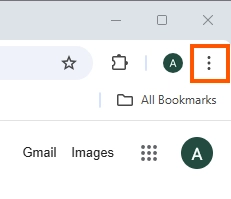
- Open your Chrome browser and click the three-dot menu icon.
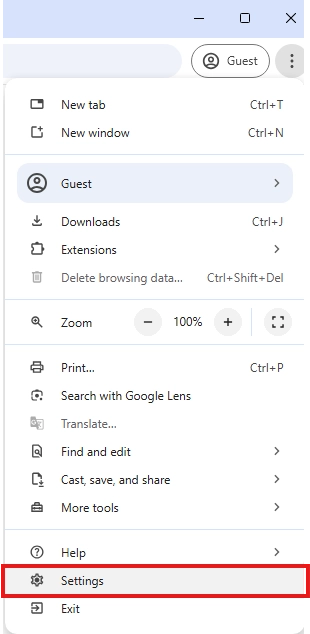
- Select Settings from the dropdown menu.
- Click the System section and Open your computer’s proxy settings. This will open proxy settings window.
- Switch to On in the manual proxy setup section.
- Enter the necessary proxy details such as IP address and port number provided by your proxy service provider.
How to disable Chrome proxy settings?
To disable your Chrome proxy settings, take these steps:
System Preferences > Network > Advanced > Proxies > Uncheck all protocols > click OK and then Apply.
Privacy settings vs. manual proxy masking
Google’s built-in feature only masks your IP address for a limited set of known trackers. It does not hide your IP from every website you visit.
Google has reversed its plan to delete third-party cookies. Instead, you now have a “Privacy Choice” prompt in your settings. For maximum privacy, we recommend turning off Google’s “Ad Topics” and using a SOCKS5 proxy to maintain a truly clean digital footprint.
FAQs about Chrome proxy settings


Be the first to comment
Your email address will not be published. All fields are required.