

Compare Remote Control Software: NinjaOne & Acronis

We tested the top 3 remote control software (also known as remote access software) to evaluate the general UI and remote control experience, their remote control quality, protocols, and unique capabilities:
Strengths and weaknesses based on our observations
An agent needs to be installed for each tool we tested in this benchmark. We completed these installations ourselves before starting the remote access tests. As we wanted to experience the entire process firsthand, we did not receive any support. Check out the agent deployment process before jumping into our experiences and observations on remote access.
NinjaOne
Strengths
- Remote sessions start quickly once the required local agent is installed. Agent installation was straightforward and provided a smooth overall experience.
- Background mode requires MFA and does not visibly disrupt the end user.
- Remote control sessions are logged in the Activity view.
- Remote control supports session recording, audio transfer, and chat after permissions are granted.
- Session recordings stop automatically on disconnect and are saved locally.
Shortcomings
- Remote control and access features must be enabled via dashboard settings. A local client/session viewer must be installed on the technician’s machine to connect.
- Image quality and resolution remained limited despite high-quality settings. Check out the image quality comparison to see the differences between the three software.
- File transfer actions are not clearly reflected in activity logs.
- Session recordings are saved in AVI format, which is not natively supported on macOS.
Acronis
Strengths
- The tool provided a rich set of in-session controls, particularly around keyboard handling, clipboard synchronization, session recording, and remote audio. These features supported cross-platform usability and reduced friction when working across different operating systems.
- The browser-based connection option also stood out for its speed and convenience, enabling immediate access without installing any local client.
- The built-in credential management feature differentiates Acronis from the tools that rely primarily on manual, session-by-session credential entry.
Shortcomings
- The web client mode, while convenient, came with trade-offs in image quality and frame rate compared to the full client. Additionally, this option was unavailable on macOS in the observed test, limiting its usefulness in mixed-device environments.
- Agent installation was highly complex and error-prone.
ManageEngine
Strengths
- Enabled fast session startup through its browser-based approach, allowing access without installing additional viewer software.
- Provided a comprehensive set of in-session tools. Power actions, Quick Launch shortcuts, and Administrator Tasks covered many common IT operations and reduced the need to navigate the operating system manually during troubleshooting.
- Consent flow for voice and video communication. Both voice and video chat required user approval before activation, aligning well with privacy expectations.
Shortcomings
- Display quality was limited during testing. The remote screen appeared visually weak, changes to Color Quality had no noticeable impact, and the available screen resolution was restricted.
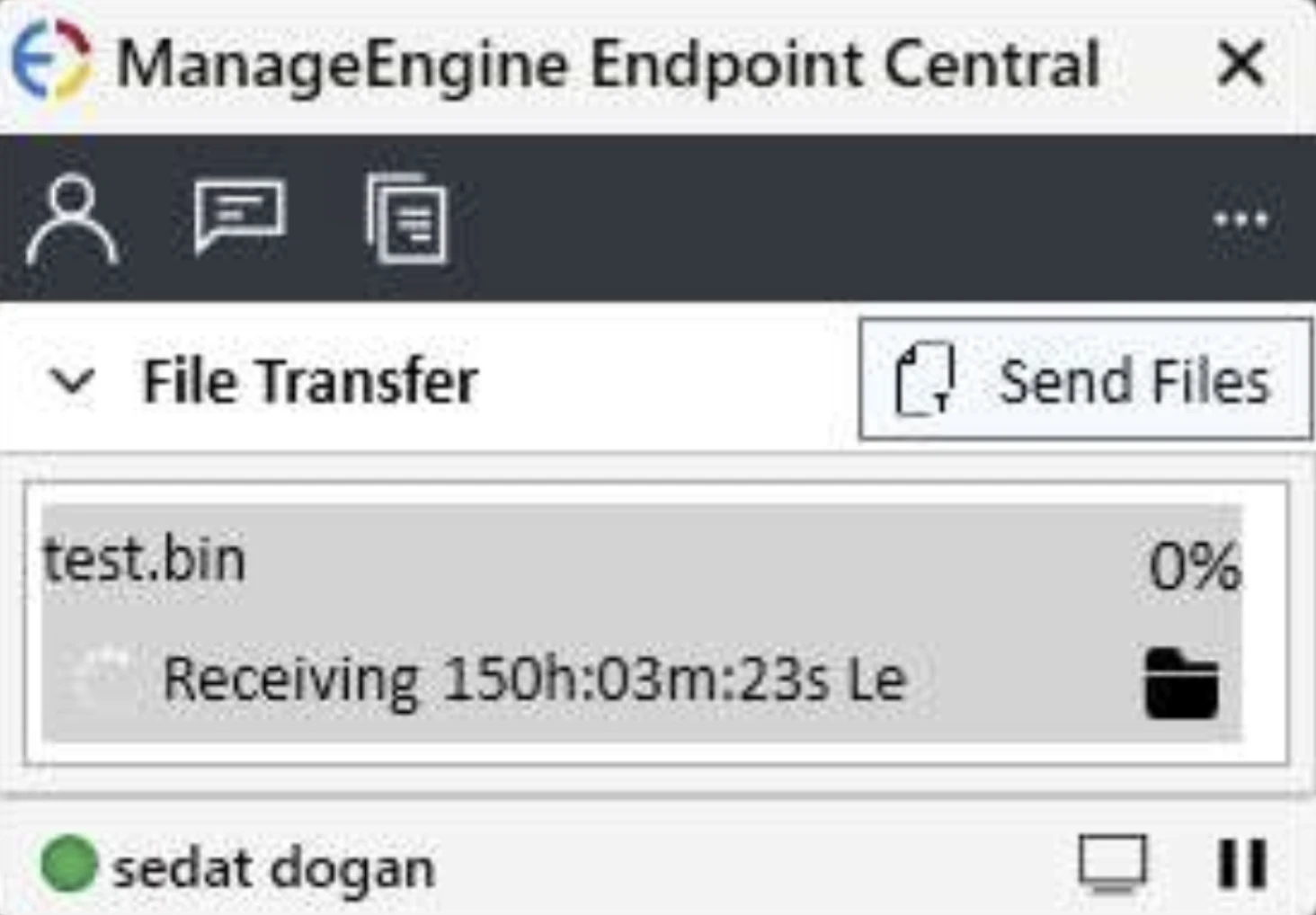
- The file transfer experience introduced multiple friction points. The interface lacked a two-pane file manager, file uploads required user approval, transfers were queued rather than parallelized, and receiving files relied on file selection dialogs within the remote session.
- Agent installation was moderately complex and involved some usability issues.
NinjaOne remote control experience
NinjaOne is a cloud-based IT management platform used by managed service providers and IT teams for endpoint monitoring, patching, and remote access to software.
Our focus in this section is on how NinjaOne handles remote control deployment, session configuration, and in-session behavior.
Activation and availability
Before we could use NinjaOne’s remote access software capabilities, we discovered that a separate remote control component had to be enabled. This is not active by default and applies only to Windows and macOS operating systems.
We enabled this feature from the Organization List. The flow includes an explicit end-user permission concept, where the user can be asked for consent during the remote connection process.
Once enabled, a new Remote Connect button appeared on supported endpoints.
After activation, each endpoint displayed two remote access options:
- Connect
- Connect in background mode
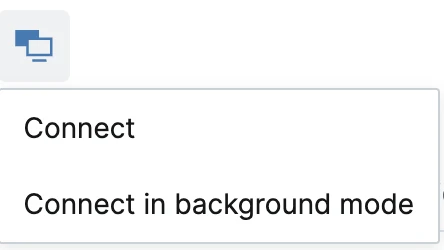
This additional activation step was required before NinjaOne could be used as a remote control software solution for interactive access to a remote computer.
Session initiation on Windows
When initiating a connection, NinjaOne required us to install a desktop app on the technician’s own machine.
After installation, clicking Connect again prompted us to allow the application to open.
Once approved, the remote screen appeared immediately.
The top toolbar provided quick access to common remote control actions, including:
- Refreshing the remote screen
- Sending Ctrl+Alt+Del
- Sending keyboard shortcuts such as Print Screen and function keys
- Paste and print actions
- Power options such as reboot, power off, reboot in safe mode, and disconnect
Session settings and controls
NinjaOne’s Additional settings menu is divided into five tabs: General, Session, Display, Network, and Advanced. Together, these settings control how remote sessions behave, how input is handled, and how visual quality is managed.
General settings: The General tab focuses on clipboard behavior, window handling, and session recording configuration.
- Prevent remote drive idle timeout: Keeps the remote session active even during periods of inactivity, preventing disconnections caused by idle timeout policies on the remote system.
- Enable file copy/paste clipboard synchronization: Allows clipboard content (such as text or files) to be copied and pasted seamlessly between the local and remote systems.
- Keep chat window minimized: Ensures the chat interface remains hidden and non-intrusive during the session unless explicitly opened.
- Other settings include: Enable macOS-style Control + Left Click = Right Click, Select directory for recordings, and Alternative directory for recordings.
Session settings: The Session tab controls session lifecycle behavior, toolbar options, and keyboard/clipboard interaction.
- Session timeout: Determines how long a session can remain active before timing out due to inactivity.
- On session close: Defines what action is taken when the session ends (e.g., no action, cleanup actions).
- Clear clipboard on session close: Automatically clears the clipboard contents when the session closes to reduce the risk of sensitive data persistence.
- Enable clipboard synchronization: Activates continuous clipboard sharing between local and remote systems during the session.
- Other settings include: Enable Ctrl+Alt+Del icon on toolbar, Enable paste as keystrokes icon on toolbar, Change keyboard input to text mode, and Disconnect confirmation.
Display settings: The Display tab controls visual fidelity, resolution handling, and what elements of the remote control are rendered.
- Preferred startup resolution: Sets the resolution used when the session starts (e.g., 1440×900 in the test).
- Video quality: Controls compression and image quality (e.g., High), balancing clarity and bandwidth usage.
- Use lossless if possible: Attempts to use lossless image transmission when network conditions allow.
- Disable auto-resize: Prevents the remote display from automatically resizing to match the local window size.
- Other settings include: Grayscale, Enable remote wallpaper, Enable font smoothing, Show remote cursor, Show red frame on active window, and Show black screen.
Network settings: The Network tab controls how the remote connection is established and routed.
- Hybrid TCP + UDP link: Combines TCP and UDP to balance reliability and performance.
- Proxy settings: Allows configuration of proxy usage, including:
- Proxy type
- Address and port
- Username and password
- Any changes to proxy settings require restarting the application for them to take effect.
Advanced settings: The Advanced tab exposes lower-level performance and capture options.
- Screen capture mode: Automatically detects and selects the most appropriate capture method for the remote system.
- GPU acceleration (beta): Enables GPU-assisted screen capture and rendering to improve performance, marked as a beta feature.
We connect to these servers from our local machines via Remote Desktop. When we access the system through this remote control as well, the existing Remote Desktop session is disconnected. This indicates that NinjaOne Remote Control does not operate like AnyDesk; instead, it uses Remote Desktop Services.
After that, we evaluated file transfer speeds based on location. Available actions include folder creation, file deletion, and file or folder uploads.
File transfer behavior
NinjaOne includes an integrated remote file transfer module accessible directly from the session toolbar. Before conducting the speed test for file uploads, we performed our own independent speed test.
We used this to transfer a 1 GB sample file for benchmarking purposes. See the results of our file transfer test.
File transfers were functional and allowed access to files on a remote computer, although performance varied by location. Transfers were initiated from within the remote session rather than through a separate two-pane file manager.
Background mode and unattended access
When using Connect in background mode, NinjaOne requires a one-time password (OTP), introducing multi-factor authentication into the workflow.
In background mode:
- The existing Remote Desktop Protocol (RDP) session was not terminated.
- The end user was not visibly disrupted.
- The interface was more minimal and application-focused, rather than showing a whole desktop.
This mode supports unattended access scenarios in which IT teams can work on a remote device without interrupting the person actively using the machine. For example, the image below illustrates the Start menu:
All remote control connections were logged under the Activity section.
Logging and macOS behavior
On macOS, our initial connection attempts resulted in a “connection established” screen without a visible desktop.
Because NinjaOne did not display the screen, we had to manually access the macOS device outside of NinjaOne by disabling the background VNC connection and connecting directly to the macOS GUI via Remote Desktop.
The root cause was missing macOS system permissions, which were not fully requested or enforced during the NinjaOne agent installation process.
As a result, the issue had to be resolved manually in the macOS interface by granting Screen Recording, Accessibility, and Full Disk Access permissions.
Once these permissions were manually enabled, the NinjaOne remote session began displaying the desktop correctly.
Session recording
NinjaOne supported session recording, which could be manually enabled during an active remote control session.
When the remote session was disconnected, the recording stopped automatically, and NinjaOne immediately redirected us to the local folder where it was saved. Recordings were stored as AVI video files.
On macOS, the recorded AVI files were not natively playable, requiring a third-party media player to view them.
Unlike Windows Remote Desktop behavior, connecting to a macOS device via NinjaOne Remote Control did not log out or interrupt the active user session, allowing the remote session to continue without forcibly disconnecting the end user.
In addition to screen recording, NinjaOne also supported:
- Remote audio transmission allows audio from the macOS device to be heard during the session.
- In-session chat, enabling direct, real-time messaging with the user actively using the device.
Acronis remote control experience
Acronis provides remote access as part of its broader cyber protection platform. We evaluated how its remote control software behaves during installation, connection, and live sessions.
Connection and client installation
Remote control sessions were initiated using the Control action. On first use, Acronis prompted us to download and install the Acronis Connect Client.
The installation process involved downloading the client and dragging it into the Applications folder. After installation, launching Control again opened the client and requested authentication.
Once credentials were entered through the web interface, the client reused them automatically in subsequent connections, reducing friction for repeated remote access.
Connection methods and session selection
Acronis offered two connection methods:
- NEAR
- RDP
When connecting, we were prompted to log in at the system logon screen or join an existing user session.
When we connected to an active Administrator session, the existing Remote Desktop connection was not terminated. This indicated that Acronis can join an active remote session context rather than replacing it, which is relevant for collaborative remote support workflows.
Credential management
Unlike other remote access tools, Acronis includes a built-in credential management system.
Credentials were managed centrally via the dashboard and automatically injected into remote sessions, eliminating the need for repeated manual entry at connection time.
Credential handling was consistent across connection methods, with the same credentials being used for both NEAR and RDP, avoiding duplicate configuration.
During connection, access was granted by explicitly selecting a specific user account (e.g., Administrator) instead of defaulting to a shared or generic session. This behavior aligns with the least-privilege principle, as the remote session was established only with credentials and an account intentionally chosen.
In-session controls and interaction
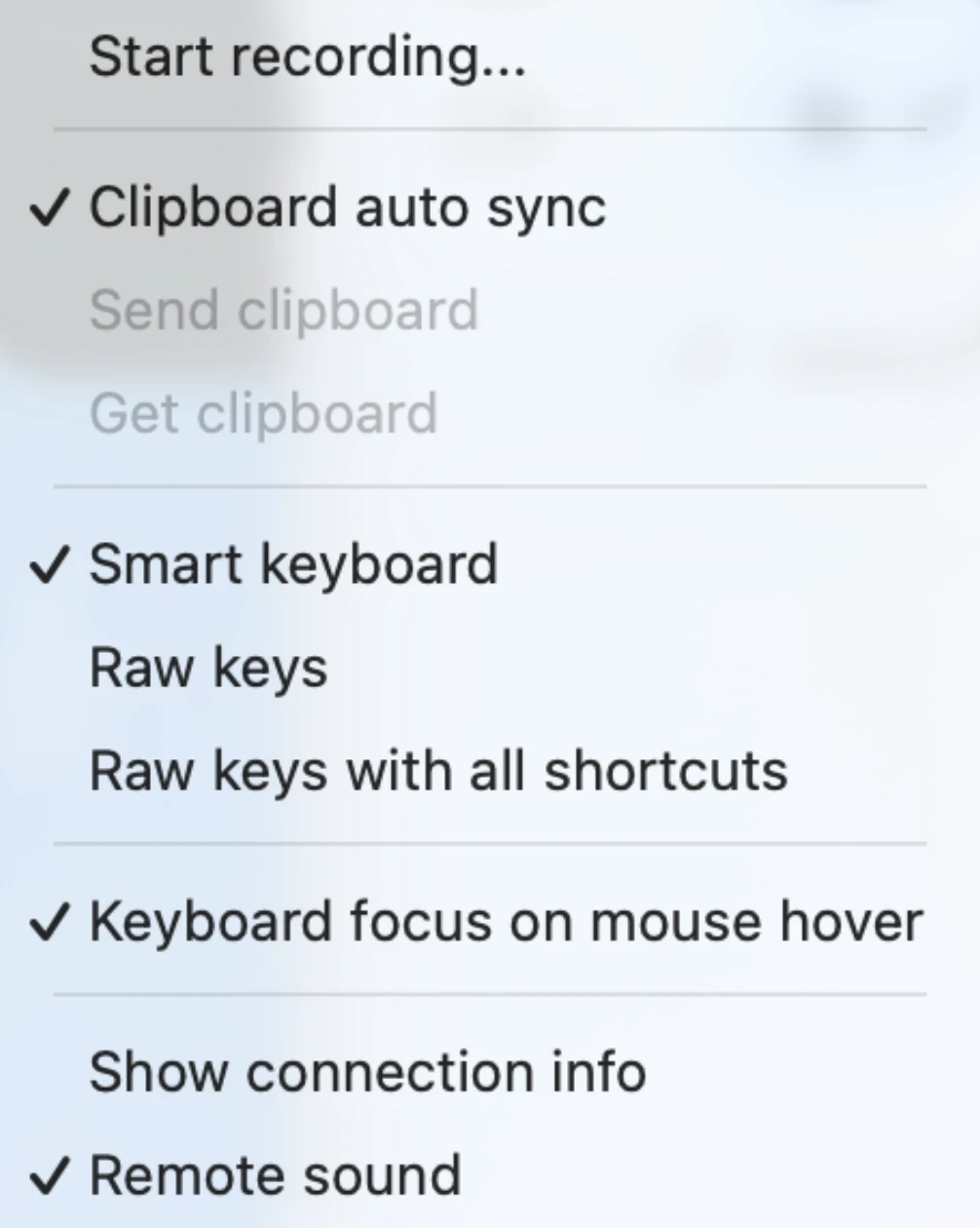
Once connected, session controls were accessible from a top-right menu and included:
- Zoom and scaling options, such as fit to screen, fill, resize, and window positioning.
- Keyboard handling modes, including smart keyboard behavior and raw key input.
- Clipboard auto-sync, send clipboard, and receive clipboard actions.
- Remote sound support.
- Session recording.
Keyboard modes allowed us to either translate shortcuts based on the operating system or forward raw keystrokes directly to the host computer.
Connection diagnostics and performance metrics
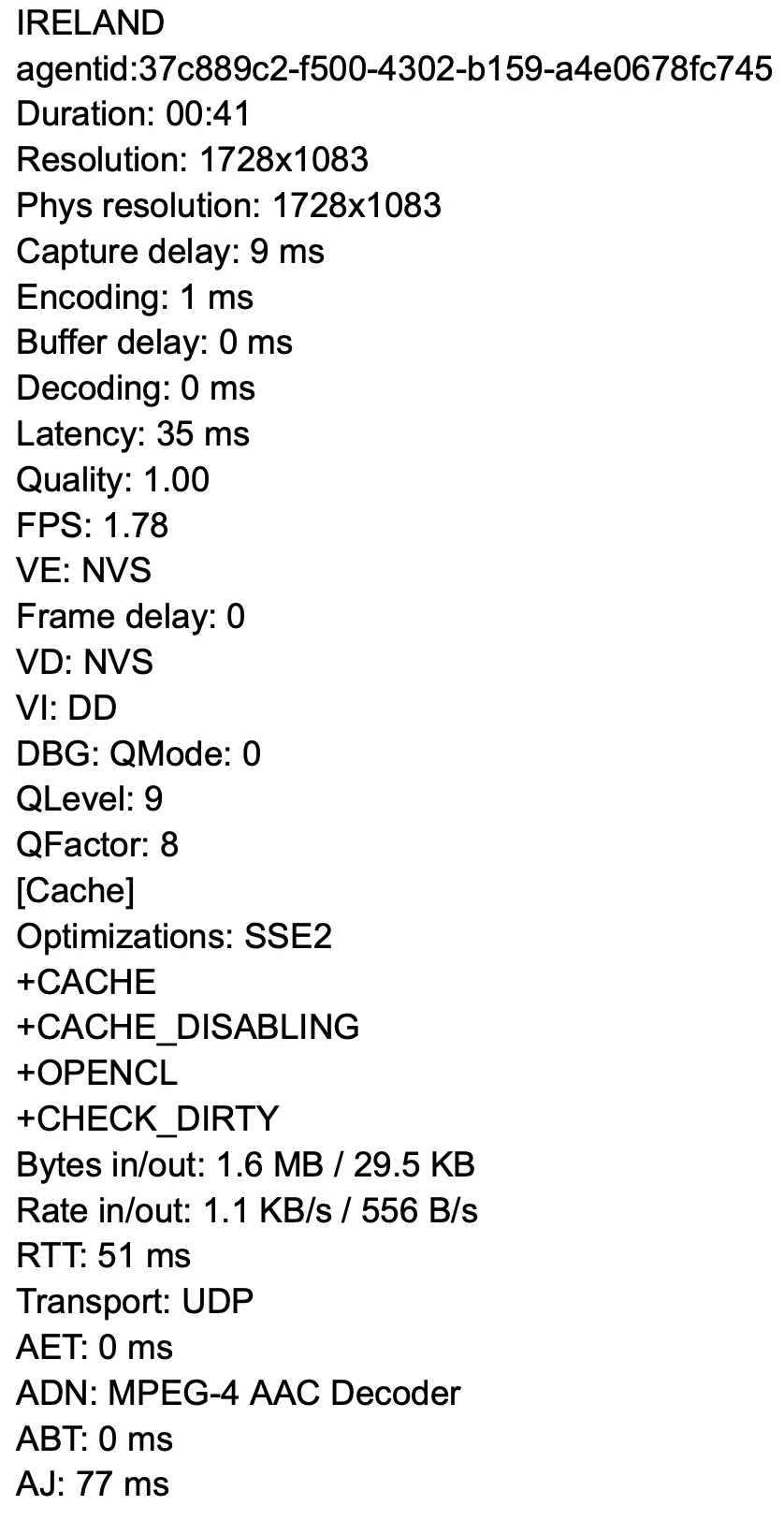
Acronis exposed a detailed connection statistics panel during live sessions. Metrics included:
- Screen and physical resolution.
- Capture, encoding, decoding, and buffer delays.
- Frames per second.
- Latency and round-trip time.
- Transport protocol (UDP).
- Inbound and outbound traffic rates.
These metrics are updated in real time and provide visibility into the remote connection’s performance. Here’s an example of performance metrics during our test:
File transfer and access modes
The file transfer interface allowed browsing local and remote directories and transferring files between them.
When multiple files were selected, transfers were processed sequentially rather than in parallel, resulting in queued file transfers.
Acronis also supported two access modes:
- Full control.
- View-only.
View-only mode allowed us to observe the remote screen without interacting with the system, which is helpful for monitoring or audit scenarios.
Browser-based access
Acronis offered a Connect via web client option that enabled remote access directly through a web browser, without requiring any plugins or local client installation. Selecting this option immediately launched a remote session in the browser, allowing you to connect with a single click.
This browser-based approach is a strong usability advantage, particularly for ad-hoc access, first-time connections, or scenarios where installing software is restricted (e.g., locked-down corporate devices or third-party support environments). Compared to many competitors that require a dedicated client or browser extensions, Acronis’ web client helped reduce setup friction and time to connection.
The trade-off was reduced performance. Image quality and frame rate were noticeably lower than with the desktop client, and the web client focused solely on core screen viewing and control, with no advanced features. However, for quick access and lightweight troubleshooting, the browser-based option remained highly effective.
At the time of testing, the web client was available only for Windows targets, limiting its applicability in mixed or macOS-heavy environments.
ManageEngine remote control experience
ManageEngine Remote Access Plus is primarily designed for help desk and remote support scenarios. We evaluated its connection flow, session controls, and file transfer behavior.
Session initiation and authentication
Remote control sessions were initiated from the Actions menu. Before connecting, we were required to enter a reason for the connection.
The session launched immediately after this step and did not require explicit end-user approval. The remote session opened directly in a web browser, with no viewer installation required on the technician side.
A password prompt appeared during connection. After entering the password, any existing RDP session was terminated, indicating that ManageEngine relies on or takes over RDP rather than joining an active session.
View and display controls
The session interface included view options such as:
- Actual size
- Full screen
- Show remote cursor
- Color quality
- Screen resolution
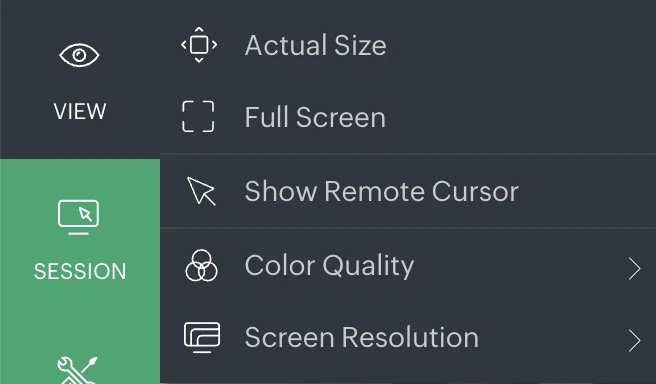
During testing, changing color quality settings did not produce visible differences, and available screen resolution was limited to 800×600, which constrained the remote desktop experience.
Session tools and administration
The session menu includes controls for keyboard input, system access, and privacy management.
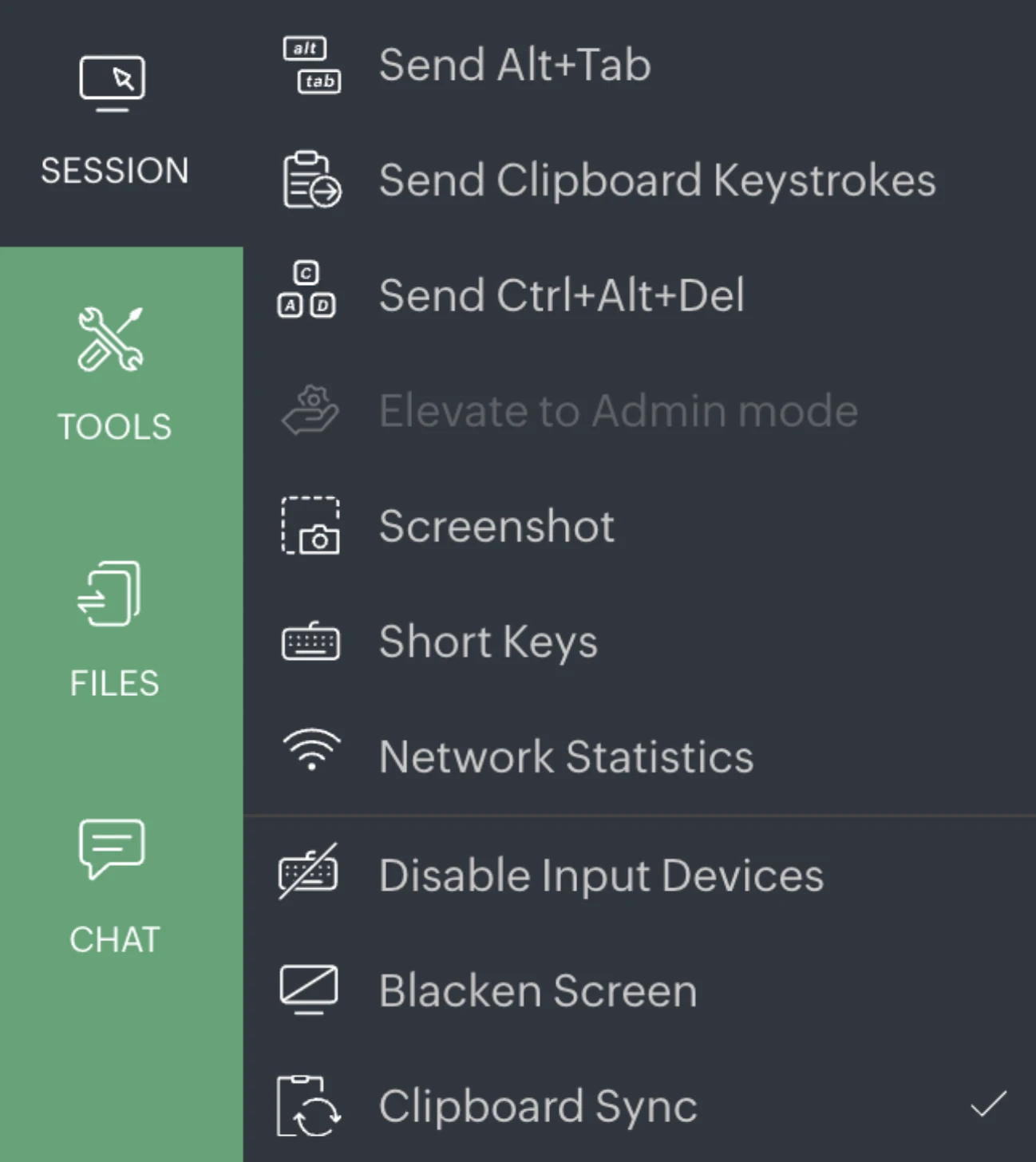
Tools and administrative shortcuts included the Power Options menu with Lock Screen, Log Off, reboot, and shutdown options.
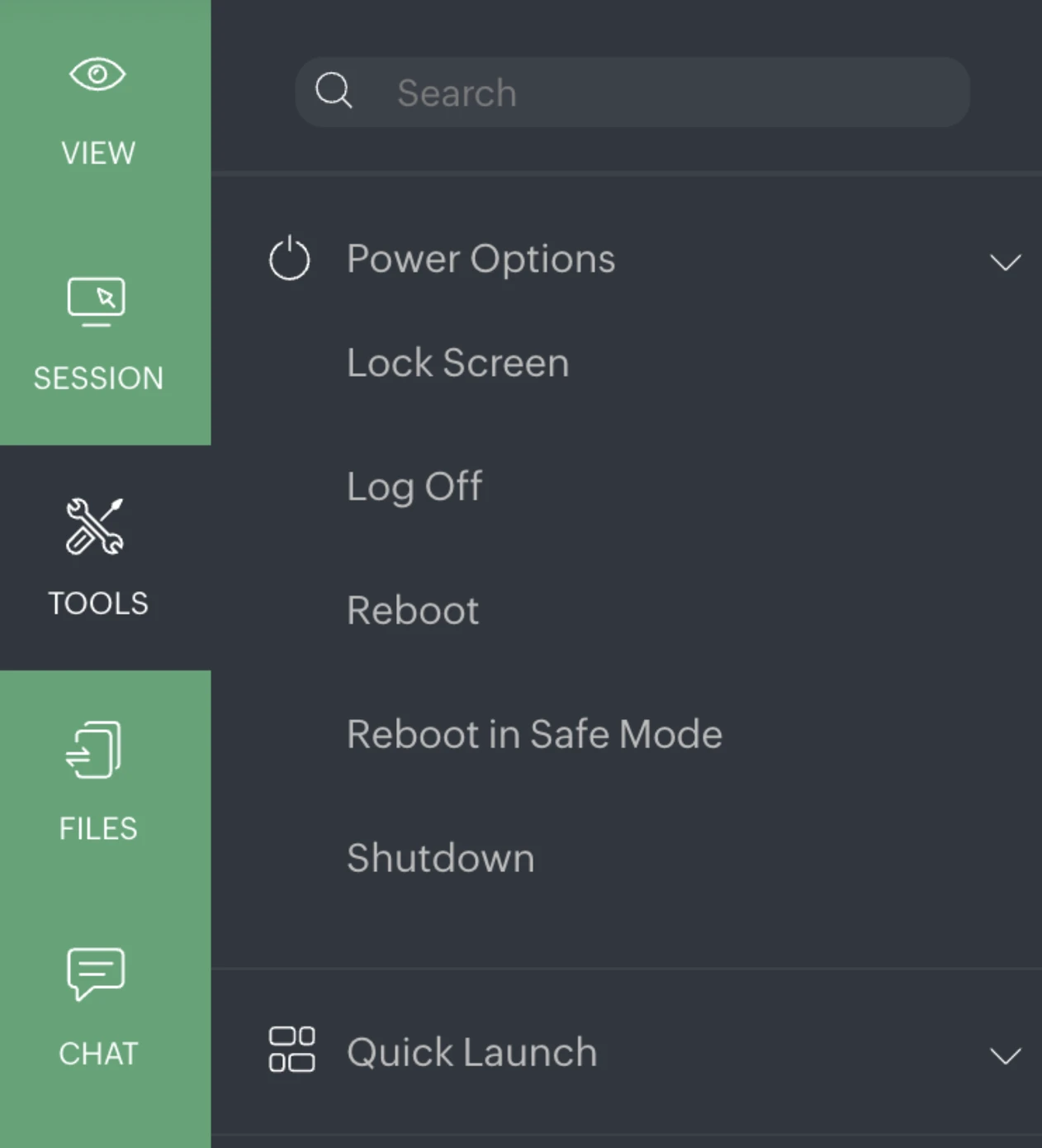
The Quick Launch menu provides shortcuts to common system tools, such as Add/Remove Programs, Command Prompt, Computer Management, Control Panel, Device Manager, and Display Settings.
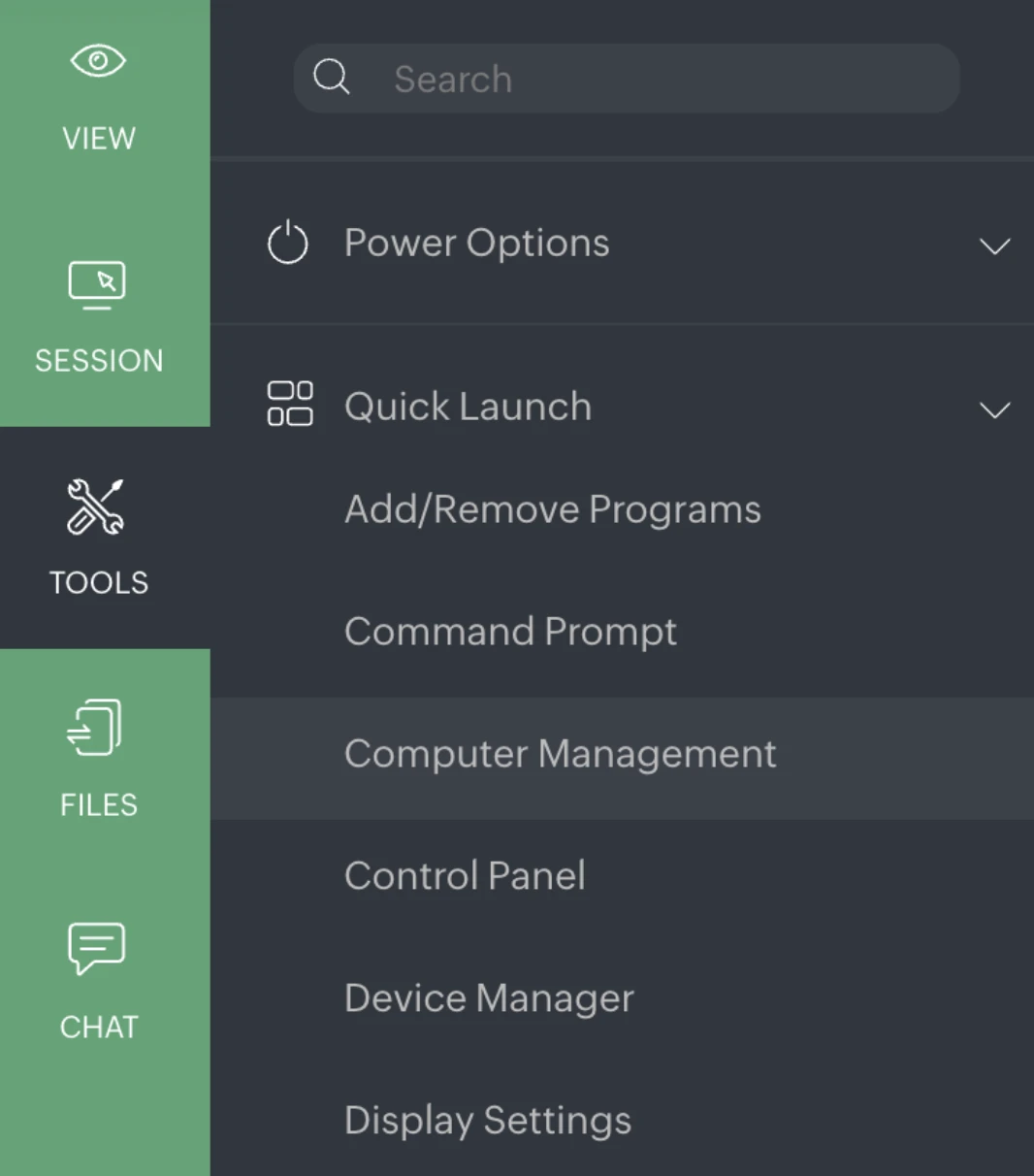
The Administrator Tasks menu includes Clean up Disk, Configure Cleanup, Task Scheduler, and Update Group Policy.
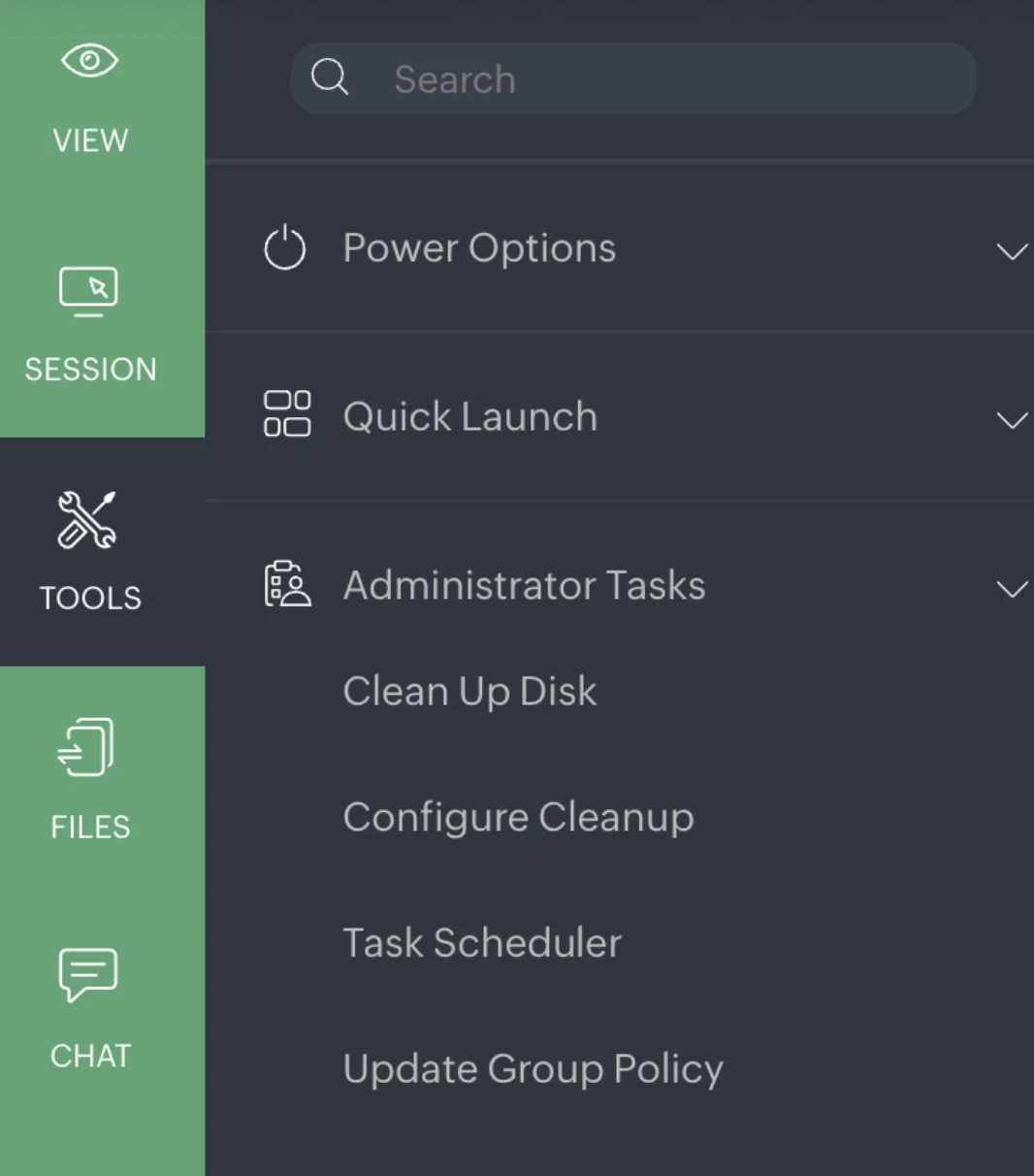
These shortcuts allowed direct access to common administrative functions during a remote support session.
Chat and communication features
ManageEngine supported three communication modes during remote sessions:
- Text chat
- Voice chat
- Video chat
Text chat opened immediately and was visible on the end user’s screen.
Voice and video chat both required explicit user consent before activation.
Due to the use of virtual machines, we can only provide screenshots; full audio and video are not available.
Here are two perspectives on ManageEngine’s remote chat feature: the technician view and the end-user/remote endpoint view.
The technician’s view:
The end-user’s (remote endpoint) view:
File transfer behavior
File transfers were handled through a dedicated interface rather than a two-pane file manager.
When sending files:
- The end user was prompted to approve the transfer.
- Files were transferred sequentially and queued.
When receiving files:
- A file selection dialog opened on the remote machine.
- The technician had to select files on the remote device manually.
- Transfer dialogs were visible to the end user.
These behaviors made file transfers more explicit to the user but less streamlined compared to other remote control solutions.
macOS-specific behavior
Initial macOS connection attempts failed due to missing system permissions and a required Helper component. The setup process did not clearly prompt for these requirements.
After granting permissions and completing the helper installation, remote sessions functioned as expected.
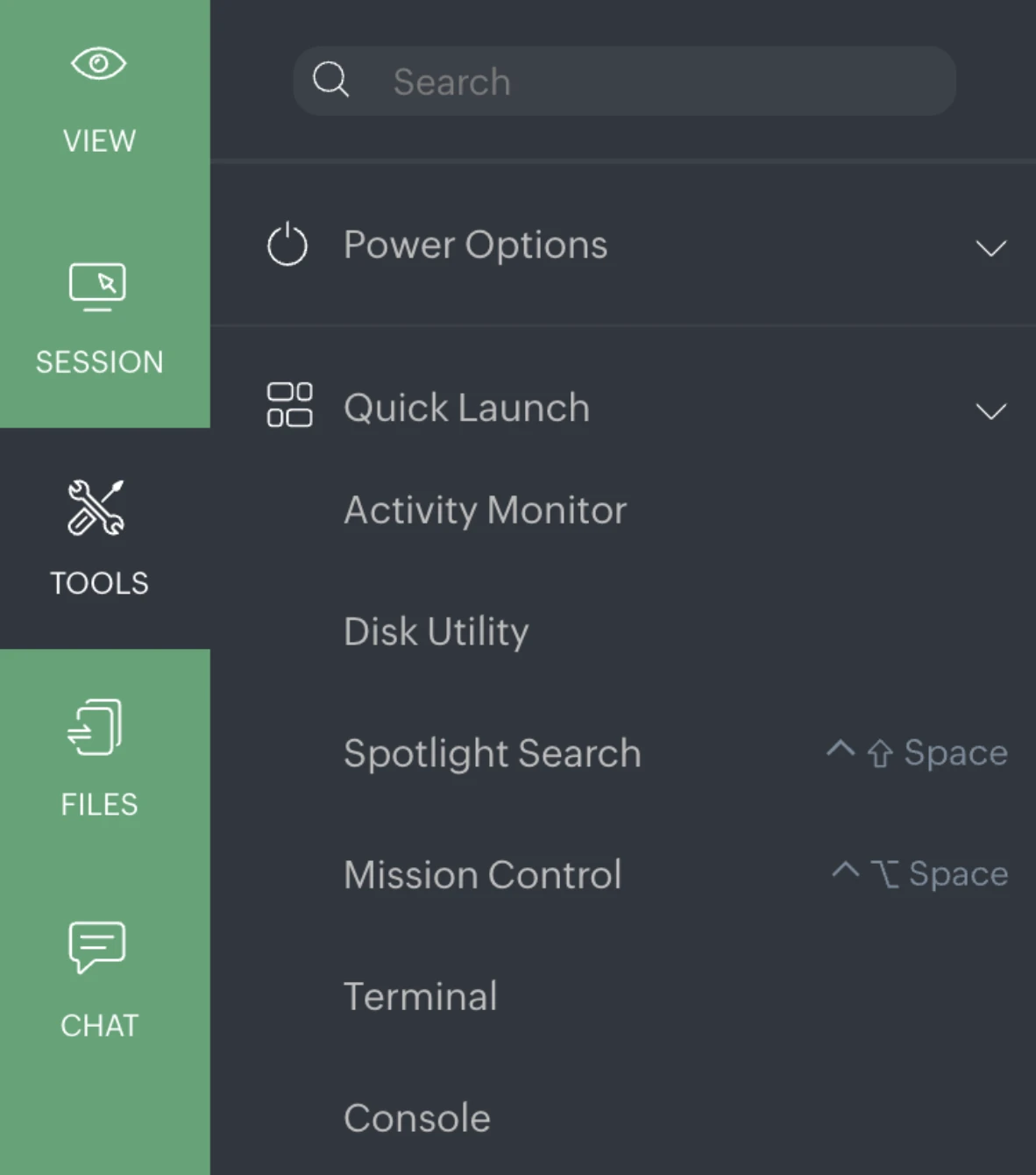
On macOS, the available quick actions differed from Windows and included:
- Activity Monitor
- Disk Utility
- Spotlight Search
- Mission Control
- Terminal
- Console
The results of our file transfer test
Note: Upload and download speeds are measured in MB/s.
- NinjaOne is the fastest in most regions, especially in Ireland, Ohio, and for uploads overall.
- Acronis is the fastest in Asia (Seoul and Mumbai), particularly in Mumbai, for downloads and uploads.
- ManageEngine is consistently slower than the other two across all tests.
- None of the tools provided parallel upload.
See our methodology to learn how we measured these tools.
Image quality comparison for remote sessions
We also assessed the image quality of live remote control sessions. We started from the same original image and viewed it through each vendor’s remote control session under different conditions.
We evaluated the images using Large Language Models (LLMs). They were provided directly to LLMs, which scored image quality across objective visual criteria such as resolution, fine detail preservation, compression artifacts, banding/noise, color accuracy, and UI/gradient clarity, on a standardized 1–5 scale.
For each vendor, we calculated average scores across environments to reflect overall screenshot fidelity and consistency. This assessment was conducted using ChatGPT and Gemini, allowing us to cross-check results across multiple LLMs.
Image quality test overview
The image quality comparison reflects the following observations:
The original image:
NinjaOne
- Image quality remains very close to the original baseline.
- Minor losses come mainly from screen-capture compression and UI overlays, not from image processing.
- Sharpness, exposure, and composition are largely preserved.
- Color saturation and contrast are slightly increased but still controlled.
Overall: High visual fidelity; degradation is minimal and mostly presentation-related.
Images from remote sessions:
Windows endpoint in Ireland:
macOS endpoint in Mumbai:
Acronis
- Best overall preservation of the original image among all vendors.
- Desktop client images show good sharpness, balanced exposure, and cleaner colors.
- Web client version introduces noticeable compression and softness, but still maintains clarity.
- Minimal UI intrusion compared to others.
Overall: Strong technical handling of images, especially in desktop clients.
Images from remote sessions:
Windows endpoint in Ireland (desktop client):
Windows endpoint in Ireland (web client):
macOS endpoint in Mumbai (desktop client):
ManageEngine
- Most noticeable quality degradation relative to the baseline.
- Clear signs of heavier compression, increased warmth, and stronger contrast.
- Fine details and smooth gradients are reduced.
- Prominent UI elements significantly affect presentation and consistency.
Overall: Functional but visually degraded; weakest image handling among the three.
Images from remote sessions:
Windows endpoint in Ireland:
macOS endpoint in Mumbai:
Remote control tools features
Automated updates and system maintenance
Automation is a core capability of remote control software, especially for IT teams managing many remote devices. Instead of manually accessing each system, administrators can push updates, security patches, and configuration changes from a central location.
This feature is commonly used to:
- Support mass deployment without interrupting end users.
- Maintain consistency across remote computers used by distributed teams.
Automation reduces manual effort while helping IT professionals keep systems aligned with internal policies.
Data transmission and screen rendering
Remote control software relies on optimized data transmission to deliver a usable experience over a remote connection. Screen changes on the host computer are encoded, compressed, and sent as a data stream to the local device.
This process enables:
- Responsive remote screen updates, even on slower connections.
- Stable remote desktop sessions across different network conditions.
- Secure transmission of visual data through a secure connection.
Efficient encoding is a key factor in maintaining usability when remotely accessing systems over long distances.
Real-time interaction and remote assistance
Remote control software supports live interaction between users and systems, making it possible to diagnose and resolve issues as they happen. IT teams and managed service providers rely on this capability for daily remote support tasks.
Typical functions include:
- Real-time screen sharing during a remote session.
- Remote troubleshooting with full access to the remote computer.
- File transfers and remote file transfer for sharing logs or configuration files.
Full access to remote applications and files
Remote access software allows users to interact with a remote computer as if they were sitting in front of it. Applications run on the host computer, while the display and inputs are handled remotely.
This makes it possible to:
- Open and edit files stored on a PC.
- Run applications that are not installed on the local device.
- Access network resources and internal systems securely.
Unattended system access
Unattended access allows users to connect to a remote computer even when no one is present at the other end. This feature is critical for maintenance, monitoring, and after-hours support.
Common use cases include:
- IT teams performing updates outside business hours.
- Accessing a home computer or office system while traveling.
- Supporting remote devices without disrupting active users.
When combined with security features such as multi-factor authentication, unattended access provides convenience without compromising secure remote access.
Remote access software use cases
Real-time IT issue resolution
Remote control software allows IT teams to connect to a remote computer and diagnose issues as they occur. Instead of waiting for on-site visits, technicians can securely log into a person’s computer and address problems immediately.
This approach is widely used by IT professionals and managed service providers to:
- Provide remote support for software errors, configuration issues, or system failures.
- View the remote screen and guide users through fixes during a live remote session.
- Offer unattended access to systems that need maintenance outside working hours.
By enabling full access, remote access solutions reduce downtime while keeping technical support responsive and predictable.
Cost savings
Using remote control software reduces operational costs by minimizing travel, shortening resolution times, and avoiding repeated on-site visits. For many organizations, remote access is more affordable than traditional support models.
Cost-related benefits include:
- Lower business plan costs for distributed teams.
- Reduced downtime through faster technical support.
- Scalable licensing options, from a free version or free license tools to enterprise plans.
Location-independent access
Remote access software enables employees to work remotely by connecting to their office systems from home or while traveling. Through a secure remote connection, users can access computers, applications, and network resources without storing company data on local devices.
This is especially useful for:
- Employees using personal devices or a home computer to access their own machine at the office.
- Teams that rely on remote desktop software to maintain consistent access to office files.
Secure file access & transfer
Remote desktop solutions allow users to access files stored on a remote computer and move data without relying on email or external storage. Remote file transfer capabilities reduce exposure to common security risks.
Common use cases include:
- Using file transfers or simple file transfers during a remote session.
- Transferring office files between remote devices using secure connection methods.
When implemented with security features such as multi-factor authentication, remote file transfer supports compliance while enabling daily work.
Operational continuity during disruptions
Remote access solutions help organizations maintain operations when offices are unavailable due to disruptions. Employees and IT teams can continue to access critical systems remotely without being physically present.
Key benefits include:
- Secure access to host computer systems during emergencies.
- Continued access to network resources and internal tools.
- Support for both single-user and unlimited-user environments, depending on business plans.
For small businesses and enterprise software users alike, remote desktop access becomes an essential tool for continuity planning.
Remote system administration
Remote access software provides IT teams with centralized oversight of distributed systems. Administrators can manage remote devices without interrupting end users.
Typical administrative tasks include:
- Mass deployment of updates.
- Monitoring performance on remote computers.
- Managing access rights for unlimited devices under business plans.
This level of control is particularly valuable for IT teams supporting mixed operating systems environments.
Remote-based training
Remote access software supports training, onboarding, and product demonstrations by allowing instructors to share their screens in real time. Trainers can show workflows directly on a host computer instead of relying on static materials.
This approach supports:
- Guided walkthroughs using interactive access.
- Software demos that reflect real-world usage.
- Internal training sessions across slower connections with multi-monitor support.
Continuous access across time zones
Remote access supports organizations with teams spread across time zones. Employees can work remotely and connect to systems whenever needed.
This is especially relevant for:
- Global support teams require an uninterrupted remote connection.
- Businesses that are using Microsoft’s Remote Desktop Protocol or alternatives like Chrome Remote Desktop.
- Organizations that need reliable access to computers outside local business hours.
Methodology
To evaluate remote access performance across vendors, test environments were deployed on cloud-based servers with consistent hardware specifications while varying operating systems and geographic regions. This approach was designed to isolate vendor performance differences without introducing infrastructure-related bias.
Windows and Linux test instances were provisioned on c5.xlarge machines, each configured with a 100 GB gp3 disk, 3,000 IOPS, and 125 MB/s throughput. Windows systems ran Windows Server 2025 Base and were deployed in Ireland, Ohio, and Seoul. Linux systems ran Ubuntu Server 24.04 LTS (HVM) and were deployed in São Paulo, North California, and Canada.
To include macOS in the evaluation, a mac1.metal instance was also provisioned with the same storage configuration and ran macOS Sequoia, deployed in the Mumbai region.
Instances were intentionally distributed across multiple regions to avoid favoring vendors whose management or relay servers might be geographically closer to a single test location. By testing across diverse regions, we assessed performance differences, expecting that geographic distance to vendor infrastructure could influence session quality.
Test scenarios
Each vendor was evaluated using the same set of remote access tasks to ensure consistency:
- File upload performance measures the effective transfer speed from the technician to the remote system.
- File download performance measures the transfer speed from the remote system to the technician.
- Parallel file upload behavior tests whether multiple files (e.g., five files uploaded simultaneously) were transferred concurrently or queued sequentially.
Parallel upload testing was used to assess how efficiently each tool handled real-world workflows involving multiple files, rather than single large transfers. All file transfer results were recorded in MB/s to enable direct comparison across vendors, operating systems, and regions.
FAQ
Cem's work has been cited by leading global publications including Business Insider, Forbes, Washington Post, global firms like Deloitte, HPE and NGOs like World Economic Forum and supranational organizations like European Commission. You can see more reputable companies and resources that referenced AIMultiple.
Throughout his career, Cem served as a tech consultant, tech buyer and tech entrepreneur. He advised enterprises on their technology decisions at McKinsey & Company and Altman Solon for more than a decade. He also published a McKinsey report on digitalization.
He led technology strategy and procurement of a telco while reporting to the CEO. He has also led commercial growth of deep tech company Hypatos that reached a 7 digit annual recurring revenue and a 9 digit valuation from 0 within 2 years. Cem's work in Hypatos was covered by leading technology publications like TechCrunch and Business Insider.
Cem regularly speaks at international technology conferences. He graduated from Bogazici University as a computer engineer and holds an MBA from Columbia Business School.





Be the first to comment
Your email address will not be published. All fields are required.