

We evaluated three major SaaS backup solutions in terms of performance, features, and usability for Google Workspace email backups. Our benchmark measured backup speeds, restore times, setup ease, and practical functionality across 21 active mailboxes containing over 90,000 emails.
Feature comparison
Feature | NinjaOne SaaS Backup | Acronis Cyber Protect Cloud | CloudAlly |
|---|---|---|---|
Supported Platforms | Microsoft 365, Google Workspace, Exchange Server | Microsoft 365, Google Workspace, Exchange Server | Microsoft 365, Google Workspace, Box, Dropbox, Salesforce, OneDrive |
Google Workspace Backup Coverage | Email, Contacts, Calendar, Tasks, Google Drive, Shared Drives | Email, Contacts, Calendar, Tasks, Google Drive | Email, Contacts, Calendar, Tasks, Google Drive, Shared Drives |
Setup Complexity | Simple OAuth authentication | Complex (requires Google Cloud Console, service accounts, and OAuth scopes) | Simple OAuth authentication |
Storage Options | NinjaOne cloud storage or Dropsuite | Acronis Cloud Storage | CloudAlly cloud storage |
Backup Frequency Options | Customizable schedules, multiple daily backups | Customizable schedules with queue management | 3x daily (premium), daily, or custom |
Cross-Workspace Migration | ✅Yes (Google ↔ Google ↔ Microsoft 365) | ❌ No (separate product) | Limited (same platform only) |
Download Format | EML, PST | Preview only (limited download) | EML, PST |
Search | Multi-mailbox search with complex criteria (AND/OR operators) | Metadata and full-text search | Basic search with advanced filters |
Automatic New User Detection | Limited (doesn’t back up automatically) | Limited (doesn’t back up automatically) | ✅ Yes (with auto-activation option) |
Multi-Tenant Dashboard | ❌ Single organization focus | ✅ Yes (designed for MSPs managing multiple customers) | ❌ Single organization per account |
Performance Comparison
We tested initial full backup speeds and complete mailbox restore times across identical Google Workspace accounts under the same network conditions.
Initial Backup Performance Summary
Our test environment included diverse mailbox sizes ranging from 53 emails (2.2 MB) to 45,455 emails (900 GB), representing typical organizational email distribution patterns.
Note: To provide a fair comparison, the benchmark table below focuses on representative mailbox sizes (Small, Medium, and Large) that successfully completed across all platforms.
Full Mailbox Restore Performance
We tested complete mailbox restoration for one representative user, containing 170 emails (7.61 MB):
- NinjaOne: 188 seconds
- Acronis: 380 seconds
- CloudAlly: 180 seconds
All three tools delivered similar restore performance, with CloudAlly slightly faster, followed closely by NinjaOne. Acronis took approximately twice as long for the same operation.
Key Performance Findings
NinjaOne Advantages:
- Only tool with an actual cross-platform migration included
- Most intuitive unified interface across all services
- Multi-mailbox advanced search with complex query operators
- Consistent reliability (100% backup completion rate)
Acronis Advantages:
- Multi-tenant dashboard ideal for MSPs managing multiple clients
- Fastest average backup speed (545 sec per mailbox)
- Part of a comprehensive cyber protection platform
CloudAlly Advantages:
- Widest platform support (Salesforce, Box, Dropbox included)
- Most straightforward initial setup with automatic marketplace app installation
- Bulk activation by organizational unit for large deployments
Initial Backup Speed:
- NinjaOne balanced speed and reliability, completing all mailbox backups within reasonable timeframes
- Acronis showed competitive performance on small-to-medium mailboxes, but slower on larger datasets
- CloudAlly showed slower performance than the other two
Initial full backup speed is less critical than it appears. After the first complete backup, all three solutions use incremental backups that complete in seconds. The initial import is a one-time operation.
Restore Speed: All three vendors delivered comparable restore times for full mailbox recovery, typically completing within 3-6 minutes for standard mailboxes.
Vendor Deep Dive
NinjaOne SaaS Backup
Platform Overview and Interface Complexity
NinjaOne provides a purpose-built, dedicated interface for SaaS backup operations. Unlike Acronis’s multi-service cyber protection platform, NinjaOne focuses specifically on backup functionality, resulting in a cleaner, more intuitive user experience.
The platform is designed for single-organization use, making it ideal for IT teams managing their own company’s backups.
Initial Setup and Configuration
To use NinjaOne SaaS Backup, you must first enable the module from the applications menu.
Storage Configuration Options:
During setup, NinjaOne asks you to choose a storage location for your backups:
- NinjaOne’s own cloud storage: Managed entirely by NinjaOne
- Your own Dropsuite account: If you already have Dropsuite, you can use your existing storage
Available storage regions:
- United States
- Europe (multiple locations)
- Asia Pacific
- Canada
- Australia
This flexibility allows organizations to meet data residency requirements for compliance purposes.
Configuration Options:
You must select your organization and choose which NinjaOne product to use. For this benchmark, we focused solely on the SaaS Backup module.
Once the configuration is complete, the dashboard is ready for adding backup sources.
Adding Backup Sources
When adding a new backup source, NinjaOne presents four options:
- Microsoft 365: Full cloud email platform
- Google Workspace: Full cloud email platform
- Hosted Exchange: On-premises Exchange servers
- Other: Individual email accounts (IMAP/POP3)
Backup Coverage by Platform:
- Microsoft 365: Email, Contacts, Calendar, Tasks, OneDrive, SharePoint, Groups & Teams
- Google Workspace: Email, Contacts, Calendar, Tasks, Google Drive, Shared Drives
- Hosted Exchange: Email, Contacts, Calendar, Tasks
Google Workspace Setup and Integration
For Microsoft 365, NinjaOne requests either a service user or a global admin login.
For Google Workspace, the setup process requires:
- Installing the NinjaOne app from Google Workspace Marketplace
- Authenticating with “Sign in with Google”
For Microsoft Exchange (on-premises), NinjaOne requests domain information and authorization credentials.
For individual email accounts via the “Other” option, NinjaOne requests basic IMAP/POP3 connection details.
Google Workspace Integration Process:
We selected Google Workspace and installed the marketplace extension.
Google Workspace Permissions Required:
When installing the NinjaOne app from Google Workspace Marketplace, the application requests the following permissions:
- Gmail access: Full read/write access to all emails for backup and restore operations
- Google Drive access: Read/write access to Drive files and folders
- Calendar access: Read/write access to calendar events
- Contacts access: Read/write access to contact information
- Tasks access: Read/write access to task lists
- Account information: Basic profile and email address information
These permissions are necessary for the backup service to function properly. The application uses these permissions only for backup, restore, and migration operations.
After installation, the NinjaOne app appears in your Google Workspace applications list, confirming successful integration.
After returning to the setup screen and clicking “Login with Google,” NinjaOne asks about Shared Drive backup preferences. We enabled Shared Drive discovery to allow the system to detect and back up shared drives.
User Management and Backup Activation
NinjaOne automatically fetches all email accounts from your Google Workspace. Each account displays icons indicating backup availability for different services:
- Email account
- Google Drive
- Contacts
- Calendar
- Tasks
Note: During our trial, the Shared Drive backup required a paid license and was not available in the trial version.
Note: We initially assumed that fetched accounts were automatically backed up. However, clicking on an individual account revealed a “Start backing up this account” option; accounts must be explicitly activated for backup after discovery.
Selecting an account and adding it to backup operations triggers a confirmation dialog.
After activation, the System Status > Backups menu shows that the backup operation has started.
Email Notifications:
NinjaOne sends email notifications for all major operations, including:
- Backup completion
- Restore completion
- Migration completion
- Download completion
- System errors or warnings
We were pleased with NinjaOne’s comprehensive email notification system; administrators remain informed without constantly monitoring the dashboard.
Backup Progress and Service-Level Tracking
Service-by-Service Backup Behavior:
Each service (Email, Calendar, Contacts, Tasks, Drive) backs up independently with separate completion times. In our test, the email backup completed in 6 minutes for one user.
This granular approach means you can see exactly which services are complete and which are still processing.
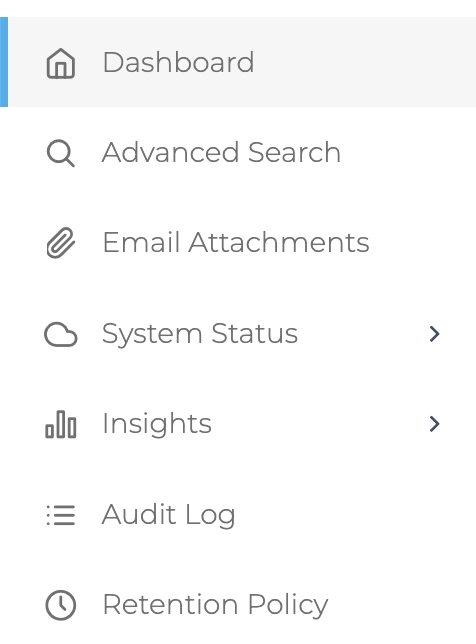
The left navigation provides access to all backup management features.
To add multiple users after initial setup, click “Add Backup” in the top right, select “Google Workspace,” and choose the accounts you want to back up.
Once all users are added, the dashboard displays a comprehensive backup status for the entire organization.
Data Viewing and Management
Hovering over any user reveals action options:
- View: Browse backed-up data
- Restore: Restore data to the original account
- Download: Export data locally
- Migrate: Move data to a different account/platform
- More: Additional options
Advanced interface:
Clicking “View” opens the most intuitive interface we encountered during testing. A single unified screen displays all backed-up services (Email, Google Drive, Calendar, Contacts, Tasks) with seamless tab-based navigation. This design is superior to both Acronis and CloudAlly, which require more navigation to access different services.
Each tab provides full access to backed-up data with point-in-time recovery options.
Clicking any email displays:
- Full email header information
- Audit log section showing backup history
- Email body content (viewable on demand)
Restore, Download, and Migration Features
For any item (email, file, calendar event), NinjaOne offers both download and restore options. Individual emails can be downloaded in EML or PST format.
Cross-Workspace Migration:
NinjaOne’s Migration feature is one of its most valuable capabilities and deserves a detailed explanation. This feature allows you to migrate emails to:
- Same workspace, different account: Move emails from one Google Workspace address to another within your organization
- Different workspace, same platform: Transfer emails to a completely separate Google Workspace organization
- Cross-platform migration: Move emails from Google Workspace to Microsoft 365 or vice versa (or to Hosted Exchange or individual email accounts)
This is a premium feature that Acronis sells as a separate paid product called “Acronis Cyber Protect Migration.” CloudAlly only supports limited migration within the same platform (Google to Google, or Microsoft to Microsoft), but cannot perform true cross-platform migrations.
For organizations planning to change email providers, this feature alone can justify NinjaOne’s cost by eliminating the need for separate migration tools or services that typically cost thousands of dollars for professional services.
When migrating, you select the destination address (which can be in any connected workspace or platform) and customize labeling for the migrated emails.
Migration vs. Restore:
- Migration: Moves emails to a different account (same or different platform) with customizable labeling
- Restore: Returns emails to the original account with label management options
Restore Conflict Handling:
During restore operations, NinjaOne allows you to manage how restored items interact with existing data through label management. Both migration and restore support single or multiple email selection, giving you granular control over what data moves where.
Advanced Search Capabilities
The Advanced Search interface resembles a compliance center, enabling comprehensive queries across all mailboxes and drives simultaneously.
Search Capabilities:
- Search across all mailboxes or specific users
- Search across all Google Drives
- Date range filters
- Sender/recipient filters
- Subject and body text search
- Attachment name search
- Size filters
- Has/doesn’t have attachment options
Complex Query Building:
Clicking “Add more criteria” reveals additional search parameters. Each search row includes AND/OR operators, allowing you to build complex Boolean queries. This level of sophistication is rare in backup tools and makes NinjaOne valuable for:
- Security investigations (find all emails from a specific sender with attachments over 10MB)
- Compliance audits (locate all emails containing specific keywords within a date range)
- Legal discovery (complex multi-criteria searches across the entire organization)
- Data leak investigations (find sensitive information across all mailboxes)
Search Performance:
We evaluated search performance by querying for all emails with attachments across all mailboxes in our organization. NinjaOne returned comprehensive results from all mailboxes in approximately 10 seconds, remarkably fast given the volume of data.
The dedicated “Email Attachments” menu displays all backed-up attachments in a single view across the entire organization. This is useful for:
- Security monitoring (identify suspicious file types)
- Storage analysis (find the largest attachments)
- Duplicate detection
- Quick attachment-level searches
System Management and Monitoring
The System Status section provides detailed logs for:
- Backups: All backup operations with start/end times, data volume, success/failure status
- Downloads: Export operations and their completion status
- Restores: Restore operations with detailed results
- Migrations: Cross-workspace migration operations
Audit Logging:
The Audit Log section captures:
- Message-level events (emails backed up, modified, deleted)
- File-level events (Drive files backed up, accessed, restored)
- User actions (administrator activities, configuration changes)
- System events (backup jobs started, policies applied, errors encountered)
Audit logs can be requested and then become available in the Download List tab for export and analysis.
Retention Policy Management:
NinjaOne supports creating multiple retention policies with detailed conditions and timeframes. This is essential for:
- Regulatory compliance (retain financial records for 7 years, etc.)
- Storage optimization (delete old backups after policy period)
- Legal hold scenarios (preserve specific data indefinitely)
- Different retention rules for different user groups or data types
You can configure:
- Retention duration (days, weeks, months, years, or indefinite)
- Conditions for retention (based on user, date, data type, etc.)
- Automatic deletion after the retention period expires
- Legal hold flags to prevent deletion
Full Mailbox Restore Test
We performed a complete mailbox restore for one user (170 emails, 7.61 MB). The operation completed in 188 seconds with email confirmation upon completion.
Acronis Cyber Protect Cloud
Platform Overview and Interface Complexity
Acronis Cyber Protect Cloud is not a dedicated backup tool; it’s a comprehensive cyber protection platform that includes backup, security, disaster recovery, and management services within a single interface.
Multi-Tenant Architecture:
A key differentiator: Acronis is designed for managed service providers (MSPs) rather than single organizations. When we requested a trial, Acronis automatically created a multi-tenant account with “My first customer” as a demo tenant. From a single administrative console, MSPs can manage hundreds of separate customer organizations, each with its own:
- Backup policies
- User accounts
- Storage quotas
- Billing
- Security settings
This makes Acronis powerful for service providers but potentially overwhelming for IT teams managing only their own company.
Unlike NinjaOne’s dedicated SaaS backup interface, Acronis presents a comprehensive control center containing multiple service types beyond email backup.
Acronis Control Center Services:
The Acronis dashboard is not just a backup tool, it’s a unified cyber protection platform. When you open the service menu, you’ll find:
Available services include:
- Backup services: Microsoft 365, Google Workspace, Exchange Server, physical machines, virtual machines, endpoints
- Endpoint protection: Antimalware, ransomware protection, vulnerability assessment, patch management
- Disaster recovery: Bare-metal recovery, disaster recovery orchestration, failover testing
- Security services: Email security, web filtering, firewall management
- Management tools: Remote desktop, monitoring, reporting, automation
This broad scope makes Acronis attractive for organizations wanting a single platform for backup AND security. However, it also means the interface is significantly more complex than purpose-built backup tools like NinjaOne or CloudAlly.
Microsoft 365 and Exchange Server Options
Microsoft 365 Backup Types:
When selecting Microsoft 365 backup, Acronis offers two distinct backup approaches:
- Agent-based backup: Requires installing Acronis software on your infrastructure for deeper integration and additional features
- Agentless backup: Direct API connection to Microsoft 365 (similar to how NinjaOne and CloudAlly work)
Each approach has trade-offs in terms of features, performance, and management complexity. For most cloud-first organizations, the agentless approach is simpler and more maintainable.
Exchange Server On-Premises Backup:
When we selected “Exchange Server” from the main service list, Acronis immediately downloaded an agent installer. This agent must be installed on your on-premises Exchange server to enable backup functionality.
This reflects Acronis’s hybrid approach, supporting both cloud services (Microsoft 365, Google Workspace) and traditional on-premises infrastructure (Exchange Server, file servers, physical machines). However, installing agents on production mail servers requires careful planning and may not be feasible for all IT teams. Most organizations have moved to cloud email, making this less relevant for modern deployments.
Google Workspace Setup Complexity
We selected Google Workspace for benchmarking.
Setup Complexity Challenge:
When we clicked Google Workspace, we were surprised to see a request for JSON credentials rather than a simple OAuth login. This immediately signaled a more technical setup process than NinjaOne or CloudAlly.
Clicking the information icon revealed extensive requirements:
- Create a project in Google Cloud Console
- Enable Google Workspace APIs
- Create a service account
- Generate and download JSON credentials
- Add domain-wide delegation
- Configure OAuth scopes in Google Workspace Admin Console
Service Account Configuration Steps:
The setup process required:
- Google Cloud Console work:
- Create a new project
- Enable Gmail API, Drive API, Calendar API, Contacts API
- Navigate to IAM & Admin > Service Accounts
- Create a new service account
- Grant necessary permissions
- Generate JSON key file
- Download JSON credentials
- Google Workspace Admin Console work:
- Navigate to Security > API Controls > Domain-wide Delegation
- Add the service account client ID
- Add OAuth scopes for Gmail, Drive, Calendar, Contacts, Tasks
- Save delegation settings
This multi-step process took considerable time and technical expertise. This setup complexity is significantly higher than NinjaOne’s simple OAuth flow or CloudAlly’s automatic marketplace installation.
After completing all configuration steps, we uploaded the JSON file to Acronis, and the connection succeeded.
Post-Setup Experience:
After a successful connection, the screen didn’t automatically update or redirect. We had to refresh and manually navigate to locate our connected workspace.
Storage Configuration
No Storage Location Choice During Backup Setup:
Unlike NinjaOne (which asks you to choose between NinjaOne storage or Dropsuite) and CloudAlly (which asks during account creation), Acronis does not provide storage location options during backup configuration.
The storage location was determined during trial account creation when Acronis asked us to select a region. We chose Germany, and all backup data is presumably stored in that region. There’s no way to change this later or use your own storage provider during backup setup.
For organizations with strict data residency requirements, this means you must select the correct region during initial account setup; you cannot change it afterward without creating a new account.
User Interface Navigation
After refreshing, we navigated to Devices > Google Workspace to access the backup management interface.
“Devices” Terminology Confusion:
We found it odd that cloud email accounts are managed under a “Devices” menu. This terminology makes sense for endpoints (laptops, servers, physical devices) but feels misaligned for cloud email accounts. Neither NinjaOne nor CloudAlly uses “devices” terminology for SaaS backup; they use more intuitive labels like “Users,” “Accounts,” or “Mailboxes.”
This reflects Acronis’s origins as an endpoint backup solution that expanded into cloud services. The terminology hasn’t fully adapted to cloud-first thinking.
Backup Configuration Options
Clicking “Group backup” (to add all users to backup) exposed numerous configuration options:
- Backup frequency scheduling: How often backups run (hourly, daily, weekly, custom)
- Encryption settings: Enable/disable data encryption
- Retention period: How long to keep backups
- Backup window: Specific times when backups can run
No Storage Location Prompt:
Notably, Acronis did not ask where to store backups during this configuration step. As mentioned earlier, the storage location was determined during trial creation (Germany in our case).
Encryption Configuration Details:
Acronis provides granular encryption options for backed-up data.
Acronis encryption options:
- Enable/disable encryption: Toggle encryption on or off for the backup job
- Encryption algorithm: Military-grade AES-256 encryption standard
- Key management: Encryption keys can be managed by Acronis or by your organization (for enterprises requiring key control)
Our testing decision: We disabled encryption during testing to ensure fair performance comparisons across all three vendors. Encryption adds computational overhead, which slows backup and restore operations (typically 10-20% performance impact). Since NinjaOne and CloudAlly didn’t have encryption enabled by default in our trial configurations, we disabled it in Acronis as well to maintain testing consistency.
After configuring backup settings, the dashboard displays per-user backup status.
Backup Execution and Progress Tracking
Backup Queuing Behavior:
When we first configured the backups, Acronis placed all jobs in a “queued” status rather than starting immediately. The interface wasn’t clear about when these queued backups would actually run; would they start in 5 minutes? An hour? The next scheduled window?
This contrasts sharply with NinjaOne, which started backups instantly upon configuration. NinjaOne began backing up users within seconds of adding them, providing immediate feedback that the system was working.
“Run Now” Error and Troubleshooting:
We discovered a “Run Now” button that should trigger immediate backup execution. However, when we clicked it, Acronis returned an error message.
We attempted troubleshooting:
- Refreshing the page
- Logging out and back in
- Checking for permission issues
- Waiting several minutes and trying again
- Verifying the JSON credentials were still valid
None of these steps resolved the issue. The “Run Now” function remained non-functional throughout our testing.
Eventually, the backups started automatically based on their schedule, but the experience was frustrating. The lack of transparency regarding when queued jobs will run, combined with the non-functional “Run Now” button, creates uncertainty for administrators.
Backup Progress Monitoring:
As we scrolled down the user list, we saw that one user’s backup had completed. The interface shows completion status clearly once backups finish.
Service-by-Service Backup Behavior:
Unlike NinjaOne (which clearly shows that Email, Drive, Calendar, Contacts, and Tasks backup separately with individual completion times), Acronis doesn’t provide this granular visibility. You can see that a user’s backup is “complete,” but you cannot easily determine which services finished and which might still be processing.
This is a minor usability issue,nNinjaOne’s service-level breakdown makes it easier to identify if a specific service (like Drive) is taking longer than expected.
User Activity Review
Opening a specific user and navigating to the Activities menu displays all backup snapshots with:
- Start timestamp
- End timestamp
- Duration
- Data volume backed up
- Success/failure status
- Any errors or warnings
User Grouping Feature:
At the bottom left of the user interface, Acronis provides a “Groups” icon that enables creating custom user groups for organizational purposes.
Use cases for user grouping:
- Department-based groups: Create groups for “Marketing,” “Engineering,” “Finance,” “Legal,” etc.
- Location-based groups: Group users by office location or region (useful for international companies)
- VIP users: Create a group for executives or high-priority accounts that need special attention or different backup policies
- Testing groups: Separate production users from test/training accounts
- Compliance groups: Group users subject to specific regulatory requirements (HIPAA, GDPR, etc.)
Recovery Interface and Options
The Recovery menu displays all available backups. From this interface, you can:
- Recover selected backups: Choose a specific snapshot to restore
- Delete all backups: Permanently remove all backup data for the user (use with caution)
- Delete individual backups: Remove specific snapshots while keeping others
Backup Deletion Options:
The ability to delete individual backups (not just all backups) is useful for:
- Storage management (remove old snapshots to free space)
- Compliance (delete backups after retention period expires)
- Error correction (remove corrupted or incomplete backups)
When initiating a restore for email backups, Acronis offers two distinct approaches:
- Entire mailbox: Restore all emails from the selected snapshot
- Individual emails: Browse and select specific emails to restore
Similarly, for Google Drive restoration:
- Selected files/folders: Choose specific items to restore
- Entire drive: Restore all Drive content from the snapshot
Email Restore – Mailbox Viewer Interface
Choosing individual email restoration presents a mailbox-style interface that is one of Acronis’s strongest features.
Email Detail View and Download Limitations:
When you click on an individual email, Acronis displays:
- Complete email header information: From, To, CC, BCC, Date, Message-ID, etc.
- Full email body content: Both plain text and HTML versions
- All metadata: Subject, priority flags, read/unread status
- Attachment information: Attachment names, sizes, types
The email viewer is comprehensive and well-designed. However, we discovered a significant limitation:
No bulk download option: You can view emails within the interface and restore them to the mailbox, but you cannot select multiple emails and download them as EML or PST files for offline analysis.
For individual email restore, Acronis works well; you can select an email and restore it to the mailbox instantly. But for scenarios requiring bulk export (common in legal, compliance, and security contexts), Acronis’s interface becomes cumbersome. You’d need to restore emails to the mailbox first, then use an email client to export them, adding unnecessary steps.
Email Restore Process
Restore Conflict Handling:
When restoring emails, Acronis provides custom location options:
- Original location: Restore emails back to their original folders (Inbox, Sent, etc.)
- Custom folder: Choose a specific folder to restore into (useful for review before merging with current emails)
- Any mailbox folder: Select any folder structure (Inbox, specific label, custom folder)
Handling existing items:
When you restore to the original location, and items already exist, Acronis asks:
- Override existing items: Replace current versions with restored versions
- Create as new items: Keep existing items and add restored items as duplicates
This granular control is important for production restores where you need precise control over how restored data interacts with current data.
Our test restore:
We restored a single email to its original location with the “override existing items” option selected. Acronis completed the operation essentially instantly (displayed as “0 seconds” completion time) and confirmed success.
Full Mailbox Restore Test
We tested complete mailbox restoration by selecting a full snapshot and choosing to recover the entire mailbox.
Restore options:
- Override existing items: Yes (replace current emails with restored versions)
- Create as new items: No
Interface Freezing Issue:
After clicking “Start recovery,” we encountered a significant UX problem: the page froze with a grey screen. The interface became completely unresponsive, with no loading indicator, no progress bar, and no confirmation message.
We initially thought the system had crashed or the restore had failed. However, using our own initiative, we manually navigated away from the frozen screen and went to the user detail page, where we discovered that the recovery operation had actually started successfully and was running in the background.
Restore completion:
The full mailbox restore for our test user (170 emails, 7.61 MB) completed in 380 seconds (6 minutes, 20 seconds). This was the slowest restore time among the three vendors.
CloudAlly
Platform Overview and Interface Complexity
CloudAlly is a purpose-built SaaS backup solution focused exclusively on cloud application data protection. Unlike Acronis’s broad cyber protection platform, CloudAlly concentrates specifically on backing up SaaS applications.
The platform is designed for single-organization use, similar to NinjaOne but different from Acronis’s multi-tenant MSP architecture.
Initial Setup and Trial Activation
We requested a trial account from CloudAlly.
Trial Activation Email in Spam:
The account activation email arrived in our spam folder, which seemed odd for a professional SaaS service. This is a potential red flag:
- Could indicate email deliverability issues
- Might cause trial users to miss activation emails entirely
- Suggests possible domain reputation problems
- First impression issue for potential customers
We activated the account and logged in.
The dashboard immediately focused on our benchmark scope, different backup integrations for various SaaS platforms.
Platform Support and Modular Architecture
Modular Integration Architecture:
Unlike NinjaOne and Acronis (which present backup as a unified service), CloudAlly treats each SaaS platform as a separate integration requiring individual setup:
Available integrations (visible on dashboard):
- Google Workspace
- Microsoft 365
- Salesforce
- Box
- Dropbox
- OneDrive (separate from Microsoft 365)
- SharePoint (separate configuration)
- Additional platforms
This modular approach offers flexibility for organizations using multiple diverse SaaS platforms. However, it also means:
- Each platform requires a separate configuration
- Each has separate settings and retention policies
- You manage each platform independently rather than unified management
Comparison:
- NinjaOne: Unified backup interface, all platforms managed together
- Acronis: Unified cyber protection platform, all services integrated
- CloudAlly: Separate integrations per platform, more modular but less unified
Google Workspace Setup and Integration
We clicked Google Workspace to begin setup. Due to our VPN, CloudAlly’s geolocation detected us as being in Spain rather than our actual location. We proceeded despite the incorrect detection.
VPN Detection Note:
All three vendors were tested while connected to a VPN to ensure consistent network conditions. CloudAlly was the only one that explicitly showed regional detection based on IP address. This misdetection didn’t affect functionality, but shows that CloudAlly uses geolocation for something (possibly default storage region or compliance settings).
Marketplace Installation:
After OAuth authentication with Google, CloudAlly did something clever: it automatically redirected us to the Google Workspace Marketplace app installation page. This is more streamlined than NinjaOne’s approach, which required manual navigation to the marketplace.
CloudAlly’s automated marketplace flow is the smoothest authentication experience among the three vendors.
Intelligent Setup Guidance:
After marketplace installation, CloudAlly displayed a message indicating “you have more to do” and intelligently guided us to complete the remaining configuration steps. This proactive guidance is excellent UX design; new users aren’t left wondering “what’s next?”
Comparison: NinjaOne and Acronis require more user initiative to complete setup. CloudAlly’s guided approach is more beginner-friendly.
When we clicked the provided link, CloudAlly presented a fully prepared configuration screen, and all settings were intelligently pre-populated with sensible defaults.
Configuration Options
CloudAlly Configuration Settings:
The configuration screen presented several important options:
Automatically activate new users:
- A checkbox that, when enabled, automatically adds future Google Workspace users to backup
- Excellent for growing organizations, no need to manually add each new employee
- Prevents “oops, we forgot to back up the new hire” scenarios
Backup retention:
- Configurable retention period
- Dropdown with options: 30 days, 60 days, 90 days, 1 year, 2 years, unlimited
- Default appears to be 1 year
Backup location:
- Cannot be changed during backup setup
- CloudAlly states, “You selected this during account creation.”
- No option to use your own storage or choose alternative regions at this point
Storage region note: Unlike NinjaOne (which offers region selection during backup setup) and Acronis (which locks in the region during trial creation), CloudAlly locks the storage region during the initial account signup, even earlier in the process.
Backup frequency:
- 3 times per day: Locked behind paid tier (not available in trial)
- Daily: Available in trial, we selected this
- Custom schedule: Additional options for specific timing
The fact that 3x daily backups require payment is notable; for organizations needing more frequent protection, this adds cost.
Organizational Unit Bulk Activation (Unique Feature):
CloudAlly offers a unique “Run bulk activation” feature that neither NinjaOne nor Acronis provides. This feature is particularly valuable for large organizations.
How it works:
In Google Workspace, users are organized into organizational units (OUs), these are typically departments, teams, locations, or functional groups. Examples:
- /Engineering
- /Sales/West Coast
- /Legal
- /Marketing/Content Team
- /Finance
Instead of manually selecting hundreds or thousands of individual email accounts for backup, you can:
- Click “Run bulk activation.”
- Select organizational units (e.g., “Legal Department,” “Engineering,” “Sales – West Coast”)
- CloudAlly automatically activates backup for all users in those units
This is one of CloudAlly’s most valuable features for large enterprise deployments and is genuinely unique among the three vendors tested.
User Activation and Initial Backup
We selected all user accounts and clicked the Activate button to initiate backup.
The dashboard has been updated to show all activated users awaiting their first backup.
We clicked “Backup Now” to trigger the initial backup immediately.
Progress Bar Inconsistency – First Issue:
We immediately noticed a problem: the progress bar was advancing (showing percentage progress) but displayed “0 bytes” for data volume. This created confusion:
- Is data actually being backed up?
- Is the progress bar accurate?
- Is this a display bug or an actual backup failure?
It turned out this was just a display issue; the byte count updates only after 100% completion. However, this inconsistency creates unnecessary uncertainty during the critical first backup.
Backup Performance Issues
Severe Backup Performance Problems:
When we checked the system the next day (expecting all backups to be complete), we discovered that five users still had incomplete email or Google Drive backups. Other services (Calendar, Tasks, Contacts) had completed, but the primary data types (Email and Drive) were still processing.
Most concerning: we were approaching the second scheduled backup period, yet the first backup still hadn’t finished. This is a fundamental problem; if the initial backup takes longer than the backup frequency interval, the system will continuously fall behind.
Important context: Initial full backups are one-time operations. After the first complete backup, CloudAlly (like all backup solutions) switches to incremental backups that only capture changes since the last backup. These incremental backups complete in seconds or minutes.
However, the initial backup is still critical because:
- You’re not protected until it completes
- Migration scenarios require completing the initial backup before switching providers
- Organizations can’t wait days or weeks for backup protection
Progress Bar Inconsistency – Second Issue:
We discovered another significant UI inconsistency: when hovering over progress bars, CloudAlly showed “Drive Done” status. However, clicking the down arrow to view details revealed that services marked as “Done” were actually still “In Process.”
Why this is problematic:
- Administrators make decisions based on status information
- “Done” status might lead admins to believe protection is complete
- Could result in false confidence about the backup state
- Inconsistent UI reporting undermines trust in the system
- Requires drilling into details to get an accurate status
This is not a minor cosmetic issue; it’s a reliability and trust problem. If the UI reports incorrect status, administrators cannot rely on dashboard information for operational decisions.
Critical Finding – One Week Failure:
Our largest mailbox (15,455 emails, 562 MB) never completed its initial backup even after running continuously for one full week. This represents a fundamental reliability failure.
Impact:
- The user had no backup protection for an entire week
- Organization exposed to data loss risk
- Unusable for enterprises with large mailboxes
- Question the reliability of the entire platform
This makes CloudAlly effectively unusable for organizations with mailboxes exceeding 10,000 emails or 300+ MB.
Recovery Interface and Options
Despite the backup performance issues, we explored CloudAlly’s restore capabilities to understand its feature set.
The Recovery menu displays a list of users. We selected ourselves to explore restoration options.
Dual Restore Approaches:
CloudAlly offers two distinct restore methods:
- Restore from snapshot: Browse backup snapshots by date and restore data from specific points in time
- Restore via item search: Search for specific items across all backups and restore individually
Both approaches have use cases:
- Snapshot restore: “Restore my mailbox as it was on June 1st.”
- Item search: “Find and restore that email from John Smith about the Q2 budget”
Snapshot-Based Restore
We selected a date range, and CloudAlly displayed all available snapshots from that period.
Granular Service-Level Restore:
CloudAlly’s snapshot interface shows that you can restore each service independently:
- Emails – Only email messages
- Documents (Drive) – Only Google Drive files
- Tasks – Only task lists
- Contacts – Only contact information
- Calendar – Only calendar events
Why this matters:
Imagine a user accidentally deleted their entire calendar but their emails are fine. With service-level restore, you can:
- Select only the Calendar service
- Restore the calendar from yesterday’s snapshot
- Leave emails untouched (no risk of overwriting recent emails with older versions)
This selective restore capability reduces the risk of unintended data loss during recovery operations. You only restore what needs restoring.
Within a snapshot, you can click the “Search” button to filter for specific items before restoring.
Clicking the detail button for Inbox shows:
- All inbox folders and categories
- Email counts per folder
- Size information
- Hierarchical folder structure
Navigating to the email list, we selected the top 5 emails to test the download functionality.
Export Functionality and Options
Our test export (5 emails) completed in under 1 second. The download was immediately available.
The system completed our 135 MB export within seconds and sent an email confirmation.
Export Destination Options – CloudAlly’s Standout Feature:
When exporting emails, CloudAlly provides greater flexibility than either NinjaOne or Acronis.
Export dialog options:
Job naming:
- Assign a name to the export job
- Appears in the Jobs menu for tracking
- Useful for organizing multiple concurrent exports
Export formats:
- EML: Standard email format, readable by most email clients
- PST: Outlook-compliant format for importing into Outlook/Exchange
Destination options (unique to CloudAlly):
- Local download: Standard ZIP file download to your computer
- Google Drive: Export directly to a Google Drive account (yours or another authorized account)
- Dropbox: Export to Dropbox cloud storage
- Microsoft OneDrive: Export to OneDrive
- FTP/SFTP: Export to any FTP or SFTP server you control
Item Search and Restore
To test item-level recovery, we deleted a specific email from the inbox.
Using CloudAlly’s item search recovery option, we searched for “OpenAI.”
An advanced search mode provides additional filtering capabilities.
The restore dialog offered options including restoration to a different email address, useful for migration scenarios.
Full Mailbox Restore Test
We performed a complete mailbox restore for an email address (170 emails, 7.61 MB). The Jobs interface showed progress, ultimately completing in approximately 180 seconds.
Missing Override Option:
We noticed that CloudAlly didn’t prompt for item handling preferences during the restore operation. Specifically, it didn’t ask:
- Should existing items be overridden with restored versions?
- Should restored items be created as new items (duplicates)?
- How should conflicts be handled?
Both NinjaOne and Acronis provide these options, giving administrators control over how restored data interacts with existing data. CloudAlly appears to use a default behavior (likely creating new items with labels), but the lack of explicit choice is a UX gap. For production restores that require precise control over data conflicts, this could be problematic.
Methodology
We conducted this benchmark under controlled conditions to ensure fair comparison:
Test Environment:
- Identical network conditions
- Same Google Workspace account (21 active mailboxes)
- Same time period (all testing conducted within one week)
- Over 90,000 emails across all accounts
Test Scope:
- Initial full backup performance (first-time complete mailbox import)
- Full mailbox restore performance
- Feature availability and usability
- Setup complexity and time-to-first-backup
What We Tested:
- Initial Setup
- Email backup and restore (primary focus)
- Google Drive and Calendar availability (observed but not performance-tested)
- Advanced features (search, audit logs, migration, retention policies)
What We Didn’t Test:
- Microsoft 365 backup (Google Workspace only)
- Long-term retention
- Support responsiveness

- Has 20 years of experience as a white-hat hacker and development guru, with extensive expertise in programming languages and server architectures.
- Is an advisor to C-level executives and board members of corporations with high-traffic and mission-critical technology operations like payment infrastructure.
- Has extensive business acumen alongside his technical expertise.



Be the first to comment
Your email address will not be published. All fields are required.